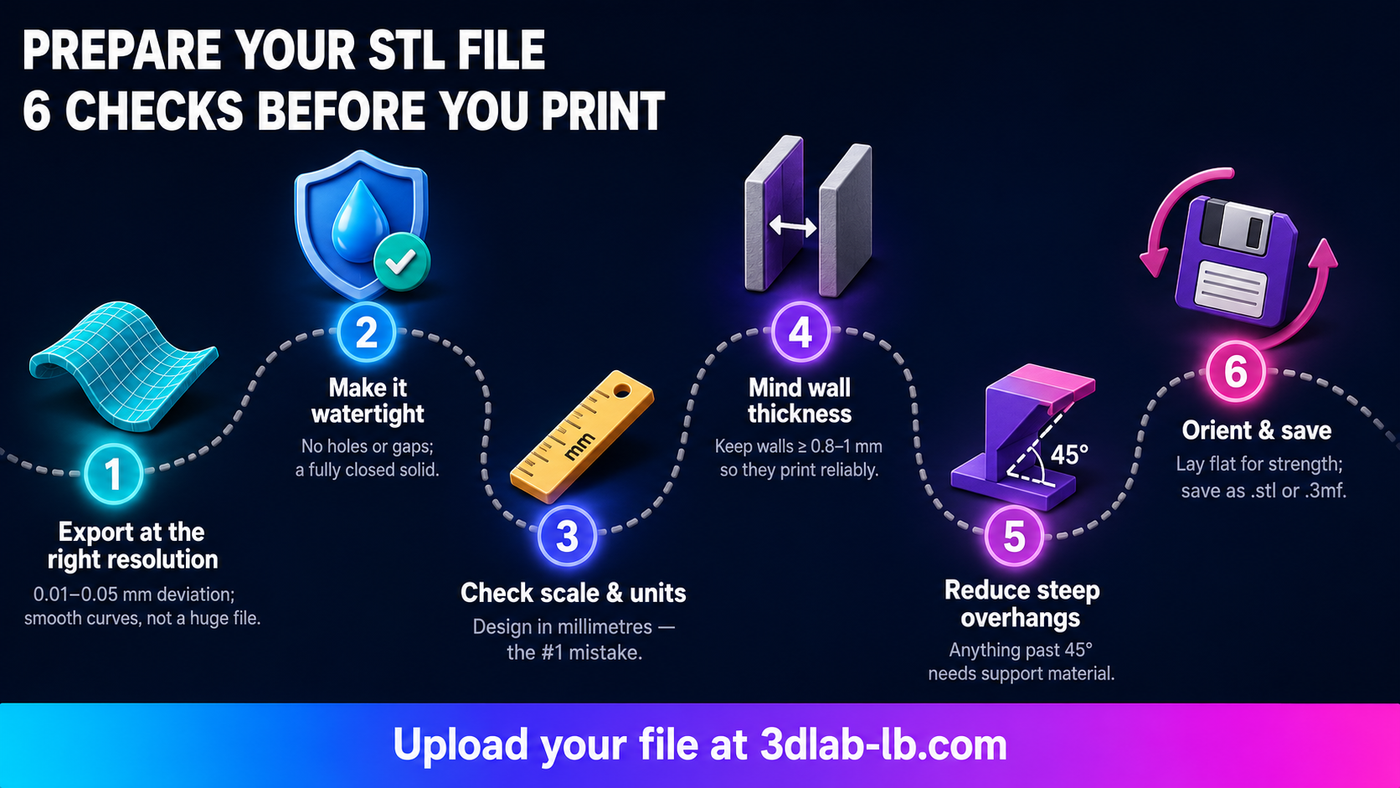
A great print starts long before the printer switches on — it starts with a clean file. Most print problems we see aren't the printer's fault at all; they're small issues in the model that could have been caught in a minute. Here's how to get your STL ready so it prints right the first time.
What is an STL file, exactly?
An STL is the standard format for 3D printing. It describes your object's surface as a mesh of tiny triangles. It doesn't store colour, materials, or units on its own — just shape. That simplicity is why nearly every design program can export one, and why a few things are worth checking before you print.
1. Export at a sensible resolution
When you export to STL, your design software asks how finely to approximate curves (often labelled chord height / deviation and angle tolerance). Too coarse and curved surfaces look faceted; too fine and you get a huge file that's slow to handle for no visible benefit.
A good rule: aim for smooth curves without going overboard. For most parts a deviation of around 0.01–0.05 mm is plenty. If your file balloons past tens of megabytes, you've probably set it finer than the printer can even reproduce.
2. Make sure the model is "watertight"
The mesh needs to be a fully closed, solid volume — no holes, gaps, or flipped surfaces. A model that looks fine on screen can still have invisible gaps that confuse the slicer. Most CAD tools and free programs (like the mesh-repair tools in Microsoft 3D Builder or Meshmixer) can check for and automatically fix non-watertight meshes.
Our instant quote tool will also warn you if it detects a model that isn't watertight, so you're not left guessing.
3. Check the scale and units
This is the most common mistake by far. Because STL doesn't carry units, a model designed in inches can arrive interpreted as millimetres — coming out 25 times too small. Before exporting, confirm your design is in millimetres and note the intended real-world size. When you upload to our quote tool, you'll see the exact dimensions in millimetres on the 3D viewer, so you can catch a scale error instantly.
4. Mind wall thickness and tiny details
Every printer has a minimum feature size. Walls or details thinner than roughly 0.8–1 mm may not print reliably — they can come out fragile or disappear entirely. If your model has delicate text, thin fins, or wire-like features, thicken them slightly. When strength matters, thicker walls and higher infill help far more than people expect.
5. Design with printing in mind
A few habits make parts print better and cost less:
- Reduce steep overhangs where you can — anything overhanging past about 45° needs support material, which adds time and cost.
- Orient for strength. Layers bond strongest across the print plane, so think about which direction your part will be stressed. (Don't worry about getting this perfect — you can rotate and lay the model flat right in our 3D viewer.)
- Split very large parts if they exceed the build size, then join them after printing.
6. Save and name it clearly
Export as .stl (or .3mf, which also carries scale and settings), and give it a clear name. If quantity, colour, or material matters, note it — you'll select all of that when you order.
Don't have a model yet — or yours needs work?
Not everyone starts with a file, and that's fine. If you have a sketch, a physical object, or a broken part, our Design & 3D Scanning service can create or repair the model for you, including scanning a real object into a printable file.
When your file is ready, upload it to our instant quote. You'll see it in 3D, check the dimensions, choose your material and settings, and get an exact price — sliced from the real print, not an estimate.
3DLab Engineering — Hamra, Beirut. Stuck on a file? Send it to [email protected] or message +961 03 138 224 and we'll take a look.